Access self-service portal using Mobile Apps
To facilitate self-service password management 'on the go', and to reduce dependencies on other users' computers and Windows logon clients, ADSelfService Plus has come up with mobile apps supporting all major platforms.
1) iOS App
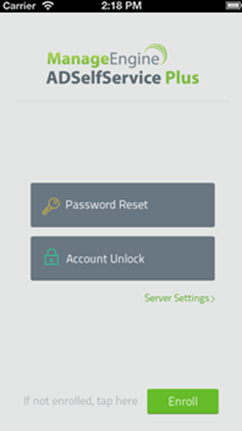
ADSelfService Plus has a native app for iPhone using which you can reset your password and unlock your account using your iPhone without depending on other users' computers.
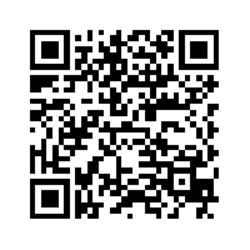
Download and install the app using the QR code given below or from the app store. Once installed, open the app and start managing your passwords on the go.
 |
|
Accessing ADSelfService Plus from iPhone |
Scan this QR code to download the iPhone app |
2) Android App
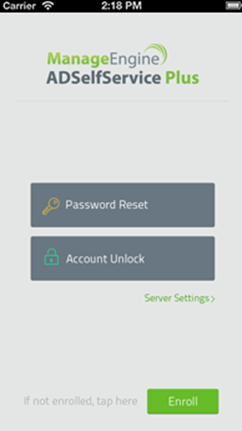
ADselfService Plus has a native app for Android users too. The app has the same features as its iOS counterpart and can be installed on mobile devices running on the Android platform.
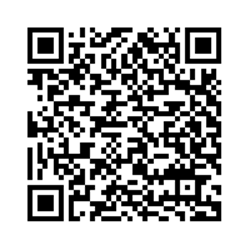
Download and install the app using the QR code given below or from the Play store.
 |
|
Accessing ADSelfService Plus from Android |
Scan this QR code to download the Android app |
Setting up the iOS and Android Apps
You've to configure the server settings before you start using the app for password self-service, so that the app can connect and communicate with the ADSelfService Plus server in your organization. Follow the below steps to configure the server settings.
- Launch ADSelfService Plus app
- Tap Server Settings in the home screen
- Slide the Enable https bar to turn on or turn off the SSL
- Enter the Server Name or IP Address and the Port Number of ADSelfService Plus (contact your IT administrator for details on server name and port number)
- Tap Done to save the settings
Note: You can also automatically set up the app by using the QR code provided in Step 2 of the Mobile Access pop-up. Log in to the self-service portal or click Forgot your password? link in a web browser and click Mobile Access button.
Test the connection by tapping the 'Enroll' button and then by logging in. If you are able to log on successfully, then you are good to go.
3) Mobile WebApp
You can also access the self-service portal directly from the browser of your smartphone and tablet running on any mobile platform including Android, iOS and Windows Mobile.
- Open a web browser from your mobile device.
- Type the URL of the ADSelfService portal: http://selfservice.archindy.org 8888, in the address bar of the mobile browser.
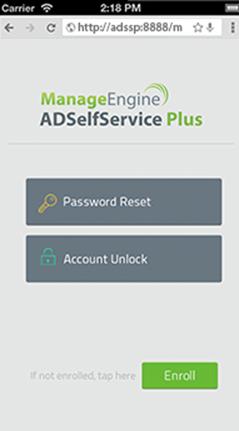
Accessing ADSelfService Plus from Mobile Browser